
Settings
Settings is at the bottom of the sidebar. From top to bottom it has Agent Paths, Project Paths, Appearance and Language. The app’s version and Check for Updates sit next to the page title.
Agent paths
Section titled “Agent paths”Agent Paths lists every supported agent with the folder HarnessKit reads for it, in the same order as the Agents page.
- All agents and Detected only. By default every agent is listed and enabled, installed or not. Detected only disables every agent HarnessKit didn’t detect and locks its Enabled button. If one of them is detected later, it comes back on by itself. Switching back to All agents turns them all on again. Agents you turned off yourself stay off.
- Enabled. Click an agent’s Enabled button to turn that agent off. It then reads Disabled. Click it again to turn the agent back on.
- Edit the path. If an agent lives in another folder, click the pencil next to its path, type the folder, and press Enter or click the check mark. In the desktop app you can browse to the folder instead. HarnessKit then detects and scans the agent in that folder. Escape cancels.
The desktop app doesn’t read environment variables you set in your shell, such as GROK_HOME or PI_CODING_AGENT_DIR, because it isn’t started from a shell. If you moved an agent with one of them, set the same folder here. hk and hk serve read these variables when you start them from a terminal. Supported agents and file locations lists each agent’s folders and variables.
A disabled agent disappears from the Agents list and the Overview. Its extensions disappear from the Extensions table and the Audit page, unless an enabled agent has them too. You can’t pick a disabled agent when you install from Extensions or the Marketplace. Its files on disk are not touched. The setting is saved in HarnessKit’s database, so hk skips the agent too.
Project paths
Section titled “Project paths”Project Paths lists the projects HarnessKit scans. Each one also appears in the scope picker: see Project scopes.
- Add. Paste a folder’s full path and click Add, or press Enter.
~isn’t expanded. In the desktop app, the folder button next to the box browses to a folder and adds it at once. - What counts as a project. A folder counts when it holds a project file or folder of any supported agent, such as a
.claudeor.codexfolder or an.mcp.jsonfile. AnAGENTS.mdorCLAUDE.mdon its own isn’t enough. - A folder of projects. If the folder isn’t a project itself, HarnessKit looks up to four levels down and lists the projects it finds. Projects you’ve already added are greyed out and marked Added. Tick the ones you want and click Add Selected.
- Scanning. HarnessKit scans each new project for its extensions and files right away.
- Missing. A project whose folder was moved or deleted is struck through and marked Missing.
- Remove. The bin icon removes a project from the list at once, without asking. Its files stay where they are. If it was the current scope, the app switches to Global.
Appearance
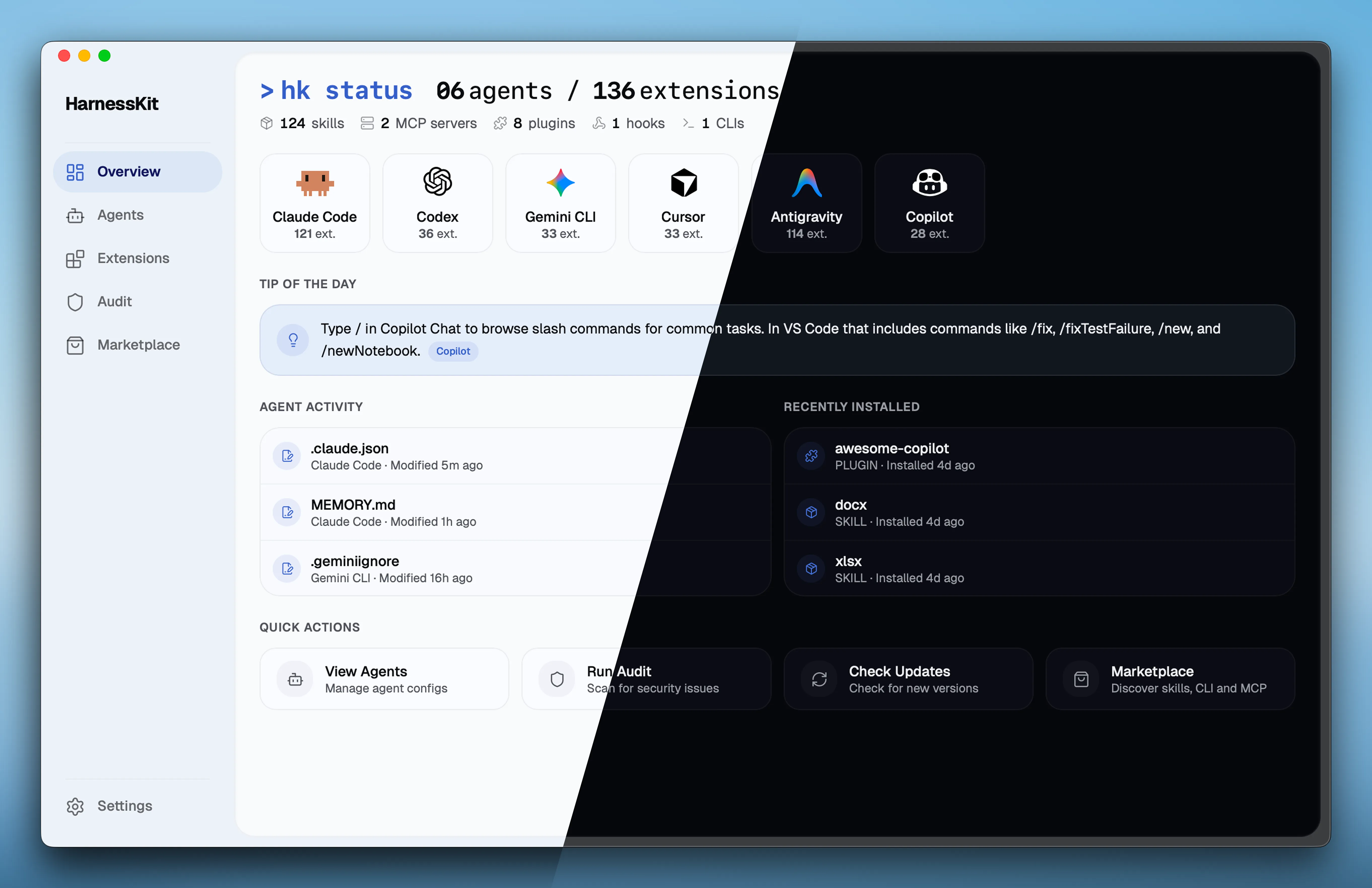
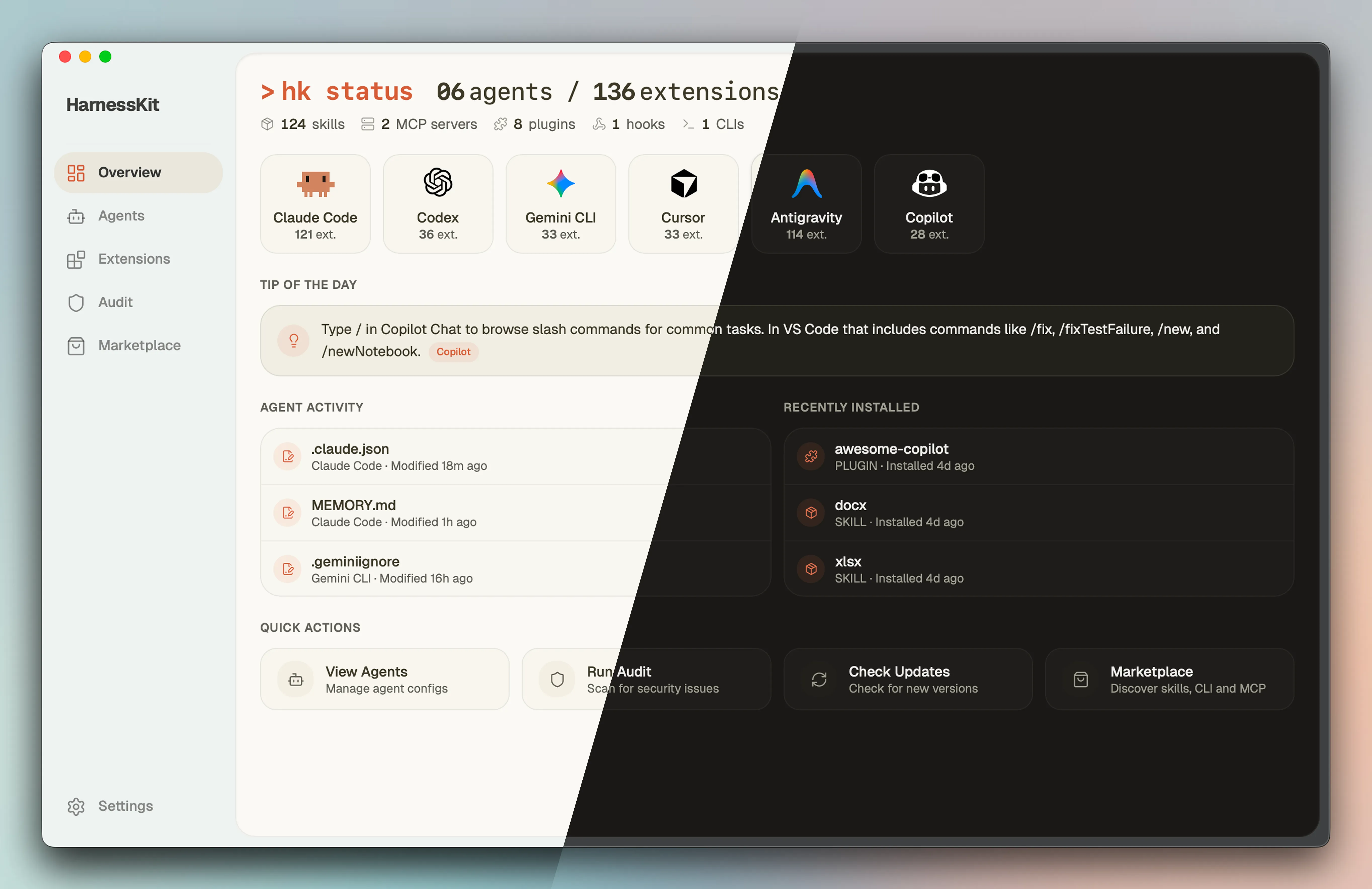
Section titled “Appearance”- Theme. Tiesen, the default, or Claude.
- Mode. System, Light or Dark. The default, System, follows your computer’s light or dark setting.
- App Icon. In the macOS desktop app only, pick one of two icons for the Dock. HarnessKit applies it again each time it starts.
Language
Section titled “Language”Pick Follow System, English, 简体中文 or 繁體中文. The default, Follow System, uses your computer’s language in the desktop app and your browser’s language in web mode. Traditional Chinese, and Chinese for Taiwan, Hong Kong or Macau, gets 繁體中文. Other Chinese gets 简体中文, and any other language gets English.
Theme, mode, app icon and language are saved by the app window or the browser, not in HarnessKit’s database. In web mode, each browser keeps its own.
Check for updates
Section titled “Check for updates”This updates HarnessKit itself. To update extensions, see Check for updates on the Extensions page.
- Desktop app. Check for Updates looks for a newer release. With none, it says “You’re up to date”. Otherwise the button changes to Update to and the new version number. It opens the release notes with Update Now, which downloads the update, installs it and restarts HarnessKit. HarnessKit also checks each time it starts, and shows Update in the sidebar when a release is out.
- Web mode. The same button checks GitHub for a newer release, and HarnessKit also checks when the page opens. The release notes have View Update Instructions, a link to the steps on GitHub, and the sidebar shows How to Update. Web mode can’t update itself. Run the install script again on the machine that runs
hk serve: see Update the hk command.